How to Automate Supplier Invoice Processing for Shopify Sellers
If you're running a Shopify store with more than a couple of suppliers, invoice processing is probably eating more time than it should — and it's costing you more than time. Every supplier invoice you type in manually is a chance to fat-finger a unit cost, miss a line item, or let a shipping surcharge slip through uncounted, and any of those quietly throws off your cost of goods sold. For a store running on thin margins, an inaccurate COGS number isn't a bookkeeping inconvenience — it's a wrong picture of which products are actually profitable.
Here's how to automate the entry itself, so accuracy stops depending on how careful you were at 11 PM after a restock.
Why This Matters More for Shopify Sellers Specifically
A service business with a handful of monthly expenses can absorb some manual-entry sloppiness without much consequence. An e-commerce store buying inventory from multiple suppliers can't — your unit economics depend directly on getting landed cost right per SKU: product cost, freight, duties, and any per-order supplier fees, all rolled into what a unit actually cost you. Get that wrong across enough orders and your "profitable" product might not be, or vice versa.
Supplier invoices are also where the real complexity lives compared to a typical business expense: multi-line-item breakdowns, sometimes multiple currencies, sometimes a mix of product cost and shipping on the same document, sometimes a purchase order number you need to match back to what actually arrived.
The Manual Process (and Where It Breaks Down)
A typical unautomated flow: a supplier invoice arrives by email as a PDF, you open it, manually enter each line item's cost into a spreadsheet or your accounting software, calculate or estimate landed cost, and update COGS for the relevant SKUs. Multiply that by every supplier, every restock, and it's easy to see where the hours (and the errors) come from — especially with international suppliers whose invoice layouts vary wildly and whose totals might be in a different currency than what you're tracking in.
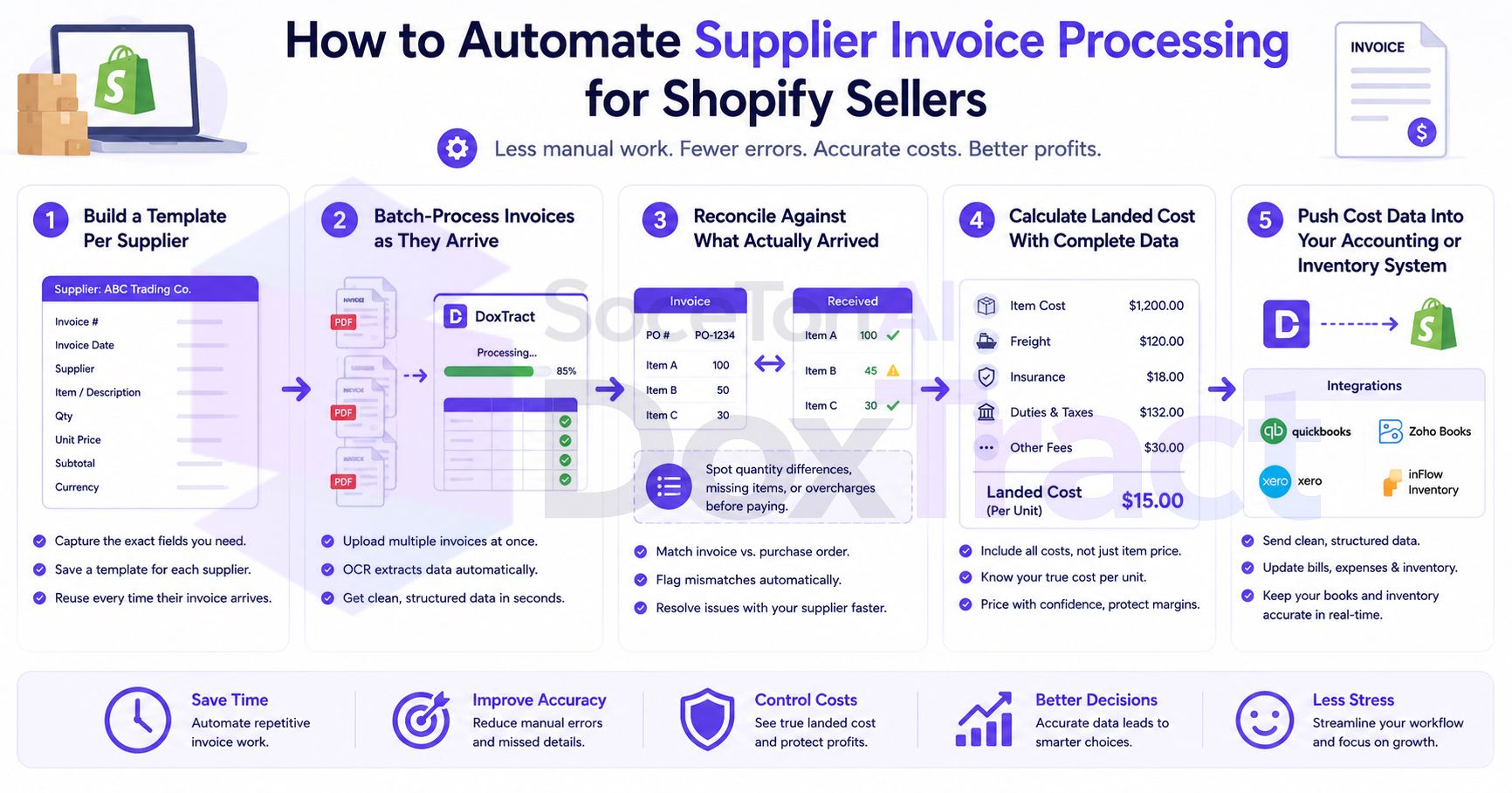
Step 1: Build a Template Per Supplier
Different suppliers format invoices differently, so extraction works best per-supplier rather than trying to force one generic template onto everyone. In the Template Editor — free to try, no signup required — upload a sample invoice from one supplier and:
Draw a Fixed Header Box around labels that stay constant on that supplier's invoices — "Total," "Unit Price," their letterhead.
Draw a Value Box around the data next to it, and connect the two.
For line-item tables (the norm on most supplier invoices), repeat the pairing per column — item, quantity, unit price — so you get per-SKU cost detail, not just an invoice total.
Include any shipping, duty, or fee lines separately, so landed cost calculations downstream have the components they need rather than one lump sum.
Save it — that template now reads every future invoice from that supplier automatically.
Step 2: Batch-Process Invoices as They Arrive
From the Doxtract App, select a supplier's template, upload their invoice (or a batch, if several arrived around the same restock), and click Extract Data. A single invoice returns results immediately; a batch processes as a job and hands back a CSV — one row per line item, if your template captures that level of detail.
Step 3: Reconcile Against What Actually Arrived
Before an invoice's numbers become your official COGS input, check them against your received inventory — quantities and unit costs should match what you actually got, not just what was ordered. Since extraction gives you structured line-item data instead of a PDF you'd have to re-read, this comparison is a quick table check (does extracted quantity match received quantity, SKU by SKU) rather than manually cross-referencing a document against a packing slip.
Step 4: Calculate Landed Cost With Complete Data
With unit cost, shipping, and duty extracted as separate line items rather than mixed into one invoice total, calculating landed cost per unit becomes straightforward: product cost plus its allocated share of shipping and duty, divided across the units it applies to. Getting shipping and duty as their own extracted fields (rather than manually estimating a rough add-on) is what makes this accurate instead of approximate.
Step 5: Push Cost Data Into Your Accounting or Inventory System
Depending on your setup:
CSV import into QuickBooks or Xero if that's where you're tracking COGS — the fastest no-code path once your extracted fields already match the columns you need.
Inventory management tools (many Shopify sellers use a dedicated inventory app alongside Shopify itself) that accept a cost-per-SKU import.
API integration, if you're running a more custom stack — DoxTract's API can feed extracted invoice data directly into whatever system tracks your inventory costs, useful if you're processing invoices from many suppliers continuously rather than in occasional batches.
Handling Multi-Currency Suppliers
If you're importing from overseas suppliers, extract the invoice's stated currency and amount as-is rather than trying to force a conversion at the template level — currency conversion is better handled at the accounting step (using the actual rate on the transaction date) than baked into extraction, since exchange rates move daily and a hardcoded assumption in your template would go stale.
Common Pitfalls Worth Avoiding
One template for every supplier. Even suppliers who seem similar often format invoices differently — treat each supplier's template as its own thing rather than trying to make one template stretch across formats it wasn't built for.
Skipping the reconciliation step. Automated extraction reads what's on the invoice accurately — it doesn't know whether what arrived matches what was ordered. That check still needs a human look.
Lumping shipping and duty into product cost. Keeping these as separate extracted fields is what makes landed cost calculations accurate instead of a rough guess.
Getting Started
Pick your highest-volume or most invoice-heavy supplier, build one template for their format in the Template Editor — no signup required — and run their next invoice through it instead of typing it in by hand. Check Pricing; the free tier (200 pages/month) is enough to test this on real supplier invoices before rolling it out across your full supplier list.