How to Handle Client Receipts Without Manual Data Entry
Every bookkeeper has a version of the same folder: a mess of forwarded emails, phone photos of crumpled receipts, PDFs named "scan001.pdf," and the occasional physical envelope a client hands you at a coffee shop. The typing isn't really the hard part — it's everything around it: figuring out what each receipt is, matching it to the right client and category, and getting it into a state you can actually enter without hunting for details.
Here's a full workflow for handling that pile without manually keying in a single receipt — from the moment it lands in your inbox to the moment it's a clean line in the ledger.
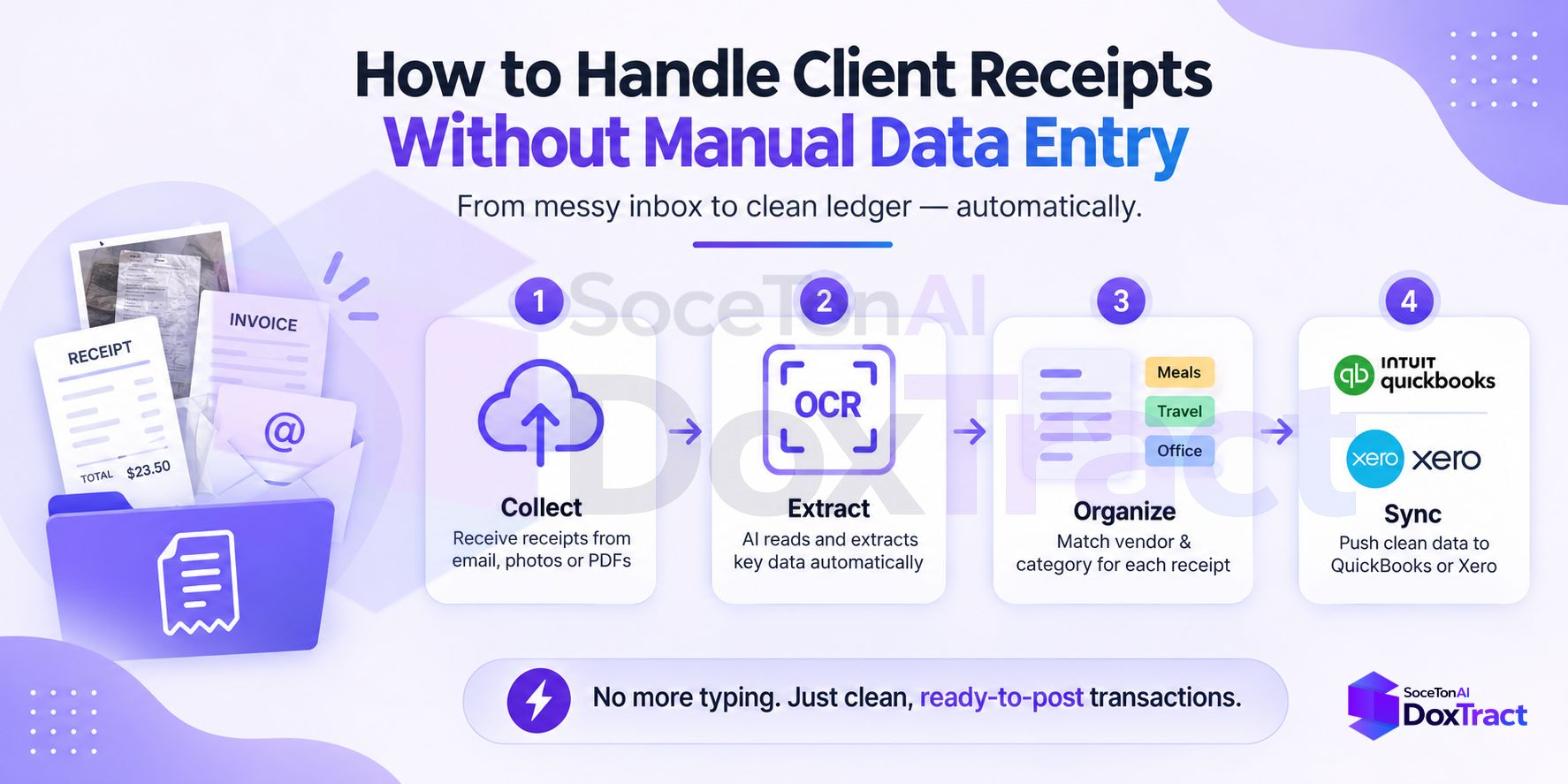
Step 1: Fix Intake First
Manual data entry usually starts before you even open a receipt — it starts with hunting for it. Standardize how receipts reach you per client:
Email forwarding to a dedicated address or shared inbox, so receipts aren't buried in a client's personal inbox
A shared folder (Drive, Dropbox) clients drop scans or photos into
A simple upload form if you want more control over file naming and organization
The goal isn't a fancy system — it's one predictable place per client, so you're never starting from "let me ask them to resend that."
Step 2: Stop Reading Receipts Field-by-Field
This is the step that actually eliminates data entry. Instead of opening each receipt and typing what you see, build a reusable extraction template once per client or per recurring vendor, and let it read every future receipt of that type automatically.
In the Template Editor — no signup needed to try it — upload one sample receipt and:
Draw a Fixed Header Box around each label that doesn't change between receipts of this type: "Total," "Date," a vendor's fixed letterhead text.
Draw a Value Box around the data next to it, and connect the two.
For itemized receipts, repeat the pairing per column to capture line items, not just the total.
Because the Fixed Header Boxes anchor the template, it keeps reading correctly even as amounts and item counts vary from receipt to receipt. Save it once, and it works on every future receipt in that format — no re-drawing, no re-typing.
Step 3: Batch-Process Instead of One-at-a-Time
Once a template exists, stop opening receipts individually. From the Doxtract dashboard, select the template, upload the whole batch you've collected for a client — a week's or month's worth at once — and run extraction. Multiple files process as a single job and hand back a CSV with every receipt's data as a row.
This is the shift that actually saves time: data entry stops being "one receipt, repeated 200 times" and becomes "one batch, reviewed once."
Step 4: Review, Don't Re-Enter
Automated extraction still deserves a sanity check — but reviewing a completed table is a different task than typing one from scratch. Scan the CSV for anything that looks off (a suspiciously round total, a blank field), and cross-check just those against the original receipt image. For a clean batch, this takes minutes, not hours.
Step 5: Get It Into the Books Without Retyping
Once the batch looks right, there are two ways to get it into QuickBooks, Xero, or wherever the client's books live:
Import the CSV directly if your template's field names already match the columns your accounting platform expects for a bulk import — the fastest no-code path.
Automate it via API if receipts arrive continuously rather than in batches. A script can pull DoxTract's structured JSON output and post it straight to QuickBooks's
Bill/Purchaseendpoints or Xero'sInvoicesendpoint, so nothing sits in a queue waiting for you to open it.
Either way, the data you're moving into the ledger was never manually typed — it was drawn out of the document once, by a template, and reused every time after.
Step 6: Keep the Paper Trail Without Keeping the Paper
Because every extraction ties back to the original document, you don't need a separate filing system for audit purposes — the source image and the extracted data stay linked. If a client (or the IRS) ever asks about a specific transaction, you're pulling up an image, not searching a shoebox.
What This Looks Like Per Client
Light client (occasional receipts): one template covers most of what they send; batch process once a month.
Recurring-vendor-heavy client: a template per major recurring vendor (their supplier, their SaaS subscriptions, their fuel card) means almost nothing needs manual review after the first month.
Messy/varied client: this is where a flexible, per-layout template approach earns its keep — a rigid receipt-scanner app that expects one fixed format will keep failing on this client specifically, while a custom template adapts to their actual documents.
Getting Started
You don't need to convert your whole client roster on day one. Pick the client whose receipts currently eat the most of your time, build one template for their most common document, and run a real batch through it. Once that's working, expand client by client. Check Pricing — the free tier covers 200 pages a month, which is usually enough to prove the workflow on a real client before deciding how far to take it.