How to Organize Digital Receipts for Multiple Clients
A solo business owner can get away with a messy receipts folder — there's only one set of books at stake. A freelance bookkeeper juggling six, ten, or twenty clients doesn't have that luxury. Mix up a receipt between two clients, lose track of which batch you've already processed, or misplace a source document you need for an audit, and the mess isn't just inconvenient — it's a trust problem with a paying client.
Here's a system that scales past the "one folder per client" stage most bookkeepers start with.
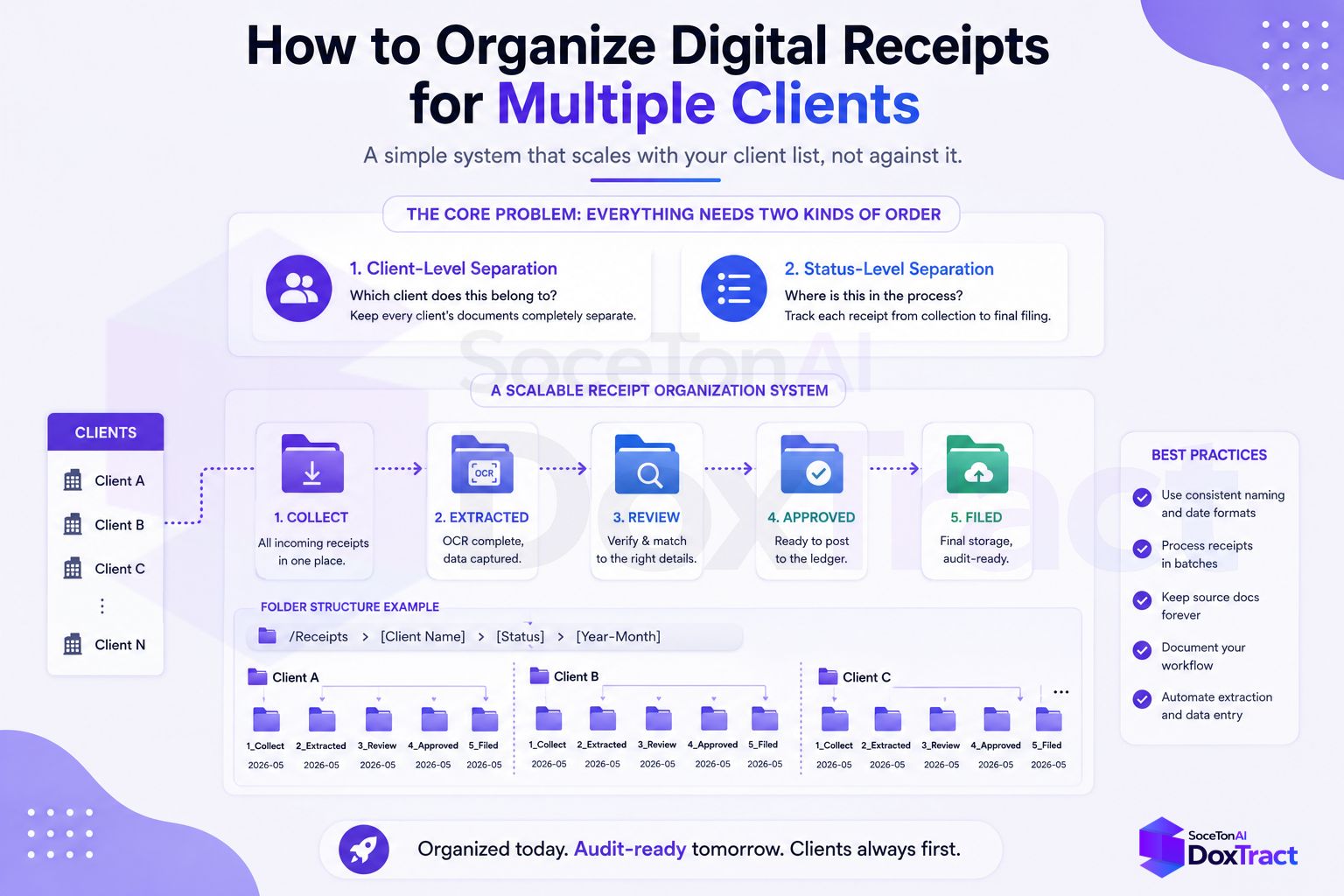
The Core Problem: Everything Needs Two Kinds of Order
Multi-client receipt organization has to solve two separate problems at once:
Which client does this belong to? (client-level separation)
Where is this in the process — collected, extracted, reviewed, filed? (status-level separation)
Most disorganized systems fail because they only solve the first problem. A folder per client is necessary but not sufficient — you also need to know, at a glance, what's been handled and what hasn't.
A Folder Structure That Covers Both
A structure that holds up well in practice:
/Clients
  /ClientName
    /01-Inbox          → newly received, unprocessed
    /02-Extracted       → run through extraction, awaiting review
    /03-Reviewed         → checked, ready to import
    /04-Filed            → imported to books, archived
The status folders matter more than they seem to at first. Without them, "have I already done this batch?" becomes a question you can only answer by opening files and checking — exactly the kind of low-value busywork this system exists to eliminate.
Naming Conventions That Actually Help
File names should let you identify a document without opening it. A reliable pattern:
YYYY-MM-DD_Vendor_Amount.pdf
2026-07-14_OfficeDepot_84.32.pdf
This does two things a generic "scan0043.pdf" can't: it sorts chronologically by default, and it lets you visually scan a folder for the receipt you're looking for without opening each one. If a client forwards receipts with unhelpful names, renaming them on intake — even before extraction — pays off every time you need to find something later.
Separate Templates, Separate Clients
This is the part that's specific to using extraction templates rather than typing receipts by hand: build one template per client, not one shared template for everyone. Even if two clients' receipts look superficially similar, keeping templates separate means:
A layout tweak for one client's template never silently breaks extraction for another
You can see, at a glance in the Doxtract dashboard, which templates belong to which client
Client-specific fields (a particular client's custom expense categories, for instance) don't leak into a template meant for someone else
Name templates the same way you'd name a client folder — ClientName - Document Type — so the Template Editor list stays as organized as your file system.
Keep the Source Document Linked to the Extracted Data
The easiest way to lose an audit trail is to let extracted data drift away from the receipt it came from — a spreadsheet row with no way to trace back to the original image. Since every DoxTract extraction ties its structured output back to the source file, keep the original document even after you've moved its data into the books, filed under 04-Filed rather than deleted. If a client or an auditor ever asks "where did this $84.32 come from," you want a one-click answer, not an email asking the client to resend something from four months ago.
Batch by Client, Not by Arrival Date
It's tempting to process receipts in the order they arrive, mixing clients as you go. Resist this — batching by client instead means:
One extraction run per client, using that client's specific template
No risk of a receipt from Client A landing in Client B's CSV export
A natural checkpoint to move that client's whole batch from
InboxtoExtractedtoReviewedin one pass
If receipts arrive continuously rather than in clean batches, a weekly per-client sweep (every Monday, process everything sitting in each client's Inbox) keeps this manageable without needing real-time processing for every client.
Access and Security Between Clients
Multi-client organization isn't just about your own sanity — it's about not accidentally exposing one client's financial documents to another. A few habits that prevent this:
Keep client folders in genuinely separate top-level directories, not subfolders that could be accidentally shared as a parent
If you use shared drive links for clients to drop receipts, scope sharing permissions to that client's folder only, never the parent
/ClientsdirectoryReview folder-sharing settings periodically — permissions granted for a one-off request have a way of outliving their purpose
A Simple Weekly Routine
Putting it together, a sustainable weekly rhythm looks like:
Monday: sweep each client's
Inbox, rename anything with an unhelpful filenameExtract: run each client's batch through their own template
Spot-check: review the extracted CSV against a few source documents per batch
Import: move reviewed data into that client's books
File: move source documents to
04-Filed— never delete them
Getting Started
If you're currently running one shared folder and one shared process across all your clients, don't try to reorganize everything in a single afternoon. Restructure your highest-volume client first, build their dedicated template in the Template Editor — no signup needed to try it — and let that become the model you roll out to the rest of your roster over the following weeks.