How Virtual Assistants Can Automate Receipt and Invoice Entry for Multiple Clients
If you're a virtual assistant handling admin work for several clients, receipt and invoice entry is probably one of the least interesting parts of the job and one of the most time-consuming. It's also one of the easiest tasks to automate — no bookkeeping certification or coding background required, just a different way of handling documents than opening each one and typing what it says.
Here's how to set that up, without needing to be technical to do it.
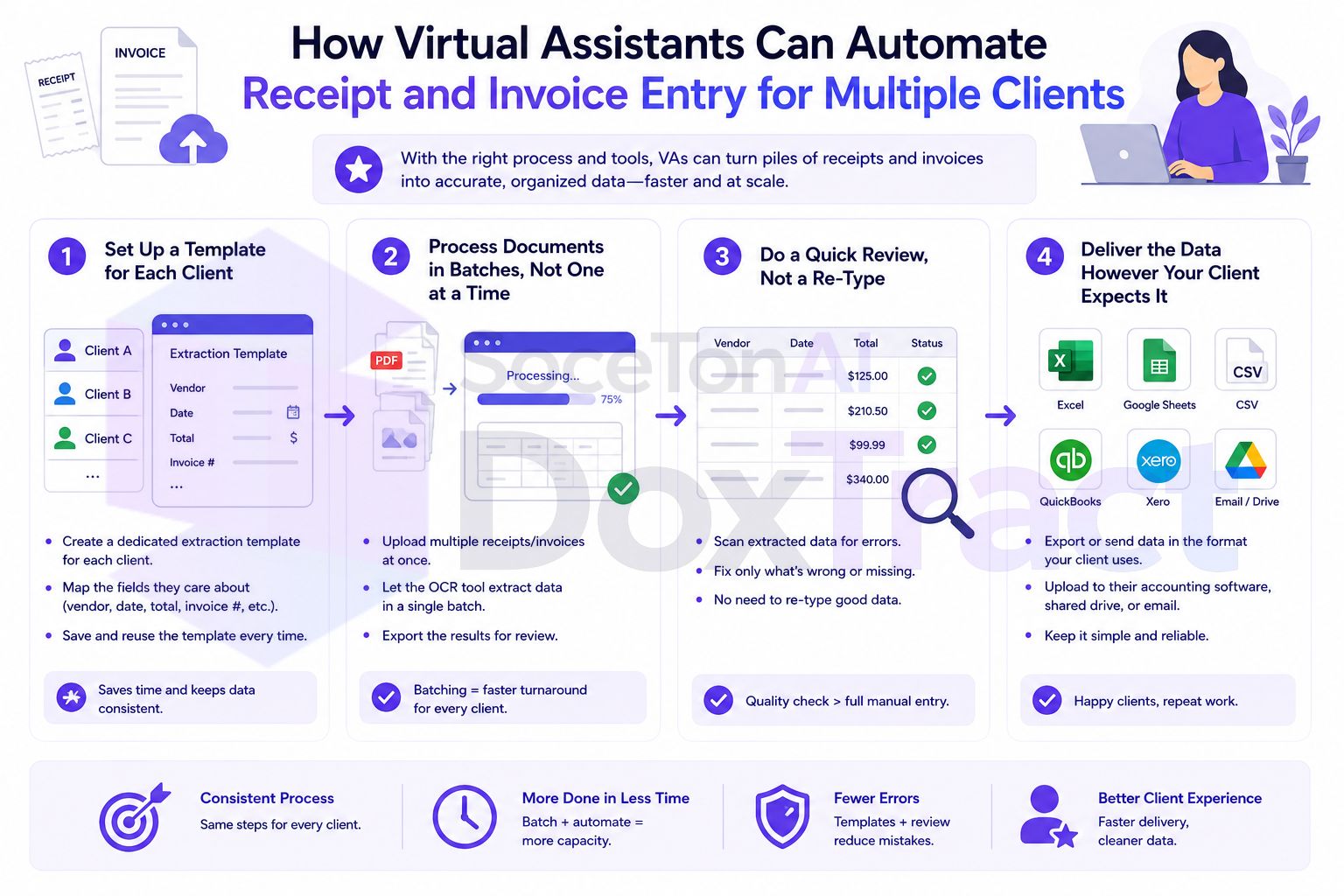
Why This Task Specifically Is Worth Automating First
Out of everything on a VA's plate — scheduling, inbox management, research, client communication — receipt and invoice entry stands out because it's purely mechanical. There's no judgment call in typing "$84.32" from a receipt into a spreadsheet or tool; it's the same action every time, just on a different document. That makes it one of the safest tasks to hand off to automation, and one where the time saved goes straight back into either billable capacity or actual client value, rather than typing.
If you bill hourly, this matters even more directly: hours spent on mechanical data entry are hours you can't spend on higher-value work, and clients rarely feel like the entry itself is what they're paying for.
The Core Idea: Teach It Once, Reuse It Forever
Instead of opening every receipt or invoice and reading it yourself, you build a reusable template — once per client, or once per recurring vendor — that reads every future document of that format automatically. You're not learning to code or use complex software; you're drawing boxes on a sample document.
Step 1: Set Up a Template for Each Client
In the Template Editor — free to try, no signup required — upload a sample receipt or invoice from one client:
Draw a Fixed Header Box around any label that stays the same across that client's documents — "Total," a vendor's letterhead, "Date."
Draw a Value Box around the actual data next to it, and connect the two by dragging between them.
Repeat for every field the client needs tracked — vendor, amount, date, and line items if they need itemized detail rather than just totals.
Click Save to Cloud.
This takes a few minutes per client, and you only do it once per document format — after that, every future receipt or invoice in that layout extracts automatically.
Step 2: Process Documents in Batches, Not One at a Time
This is the actual time-saving step. Instead of opening client documents individually throughout the week, collect them and process a whole batch at once from the Doxtract App:
Select the client's template.
Upload everything you've collected since the last batch — a week's worth, a month's worth, whatever fits your workflow.
Click Extract Data.
A single document returns results immediately. A batch processes as one job and hands you back a CSV — one row per document — ready to drop into a spreadsheet, or to hand off however your client wants their bookkeeping data.
Step 3: Do a Quick Review, Not a Re-Type
Automation still deserves a sanity check, but reviewing a completed table of extracted data is a different task than reading documents from scratch. Scan for anything that looks obviously off — a suspiciously round number, a blank field — and only pull up the original document for those specific cases. For a clean batch, this takes a few minutes rather than the hour it would have taken to type everything by hand.
Step 4: Deliver the Data However Your Client Expects It
Depending on what each client wants:
Drop the CSV straight into a shared spreadsheet they already use.
Import it into their accounting software if it's set up to accept a CSV of that shape.
Forward it to their bookkeeper, if you're not the one doing the actual books — a lot of VAs handle document collection and organization as a step before a separate bookkeeper takes over.
Either way, you're handing off structured, already-extracted data instead of a folder of PDFs someone else has to read.
Managing Multiple Clients Without Mixing Them Up
A few habits that matter more as your client count grows:
One template per client, named clearly (
ClientName - Invoices), so you're never guessing which template applies to which document.Batch by client, not by arrival order — process one client's pile fully before moving to the next, rather than interleaving documents from different clients in one sitting.
Keep intake separate per client — a dedicated forwarding email or shared folder per client avoids the "whose receipt is this again" problem entirely.
What This Changes About Your Capacity
The direct effect is fewer hours spent on the least interesting, lowest-judgment part of the job. The indirect effect is usually more meaningful: the same weekly hours can now cover more clients, or free up room for the parts of VA work that actually require you — client communication, coordination, research, the things a template can't do.
If you're currently at capacity and turning down new clients specifically because you can't fit in more manual entry, this is usually the first thing worth automating before anything else on your task list.
Getting Started
Pick your highest-volume client, build one template for their most common document type in the Template Editor — no signup required to try it — and run their next batch through it instead of typing it by hand. Check Pricing; the free tier covers 200 pages a month, enough to test this on a real client before rolling it out to the rest of your roster.