How Property Managers Can Automate Contractor Invoice Processing
If you manage more than a handful of units, contractor invoices are a constant stream — a plumber here, an HVAC repair there, landscaping across a dozen properties, a roofer's invoice that needs splitting across two buildings because the crew worked on both in one visit. Every one of those has to get typed in, tagged to the right property, and often the right unit, before you can report accurate expenses to an owner or account for a maintenance budget.
Manual entry doesn't just cost time here — it's where a plumber's invoice gets miscoded to the wrong property, where an owner's monthly statement is off because a repair cost landed in the wrong bucket, and where 1099 season becomes a scramble to reconstruct a year's worth of contractor payments from memory and a shoebox of invoices.
Why This Task Is Specifically Painful for Property Management
Compared to a typical business's vendor invoices, contractor invoices in property management carry extra complexity:
Property and unit attribution — every invoice needs to be coded to the right property, and often the right unit within it, not just categorized by expense type
Split invoices — one contractor visit covering multiple properties or units means one invoice needs to be divided, not just entered
Owner reporting — for managers overseeing owner-held properties, expenses need to flow into per-owner statements accurately, since owners are checking these numbers against their own expectations
1099 compliance — contractor payments over the reporting threshold need to be tracked by contractor across the whole year, which is nearly impossible to reconstruct accurately from memory at tax time if it wasn't tracked as it happened
None of these are things a generic expense-tracking tool handles well out of the box — they're specific to managing other people's properties, not just your own books.
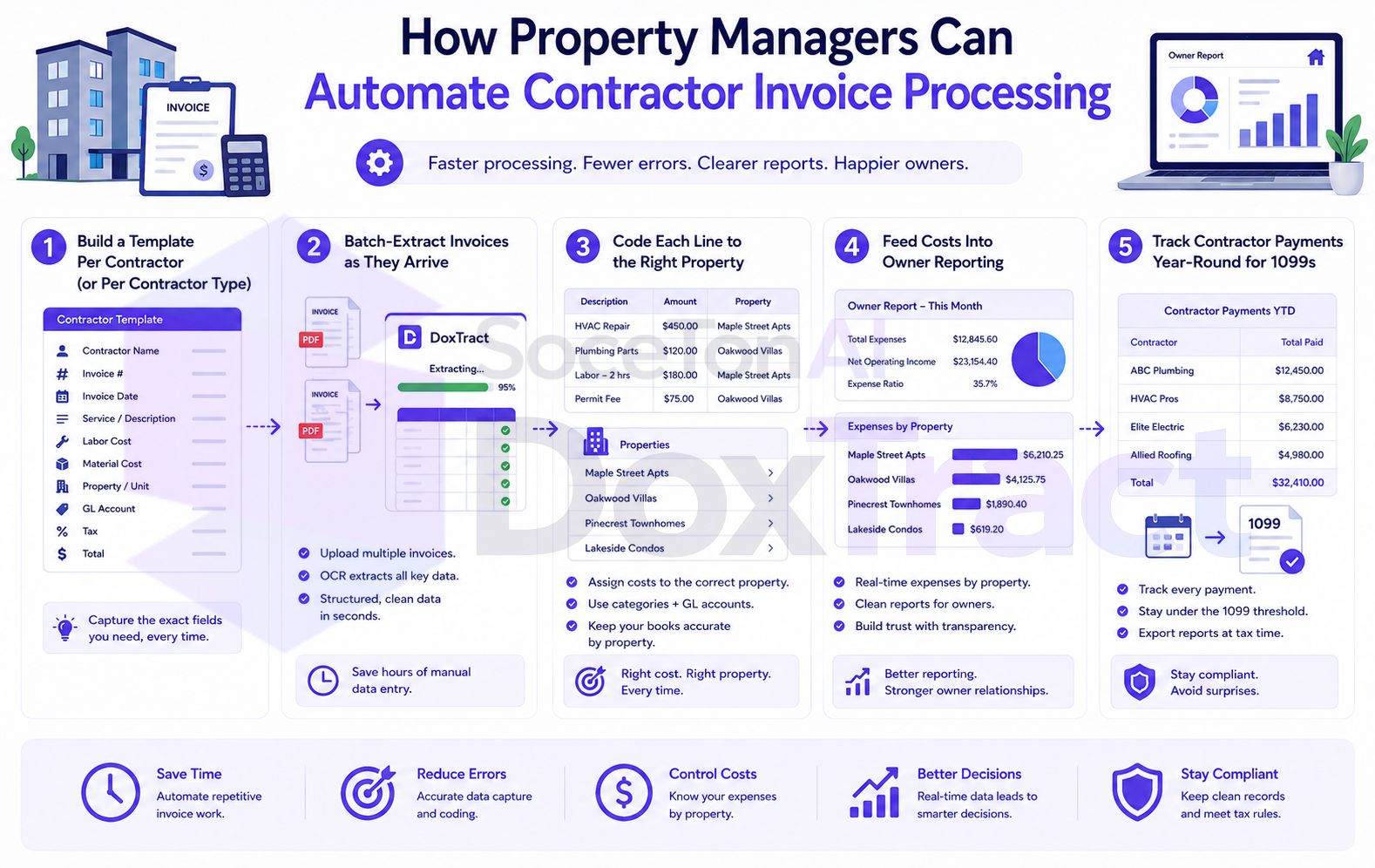
Step 1: Build a Template Per Contractor (or Per Contractor Type)
In the Template Editor — free to try, no signup required — build a template that extracts what you actually need for property-level tracking, not just a total:
Draw a Fixed Header Box around labels that stay constant on that contractor's invoices — their letterhead, "Total," "Service Date," "Property/Unit" if they include it.
Draw a Value Box around the data next to it, connecting the two.
Capture line items if a single invoice covers multiple jobs or properties — you'll need that breakdown to split costs accurately, rather than one lump total you'd have to manually divide later.
If a contractor regularly serves several properties in the same visit, a template that pulls per-line-item detail (rather than just an invoice total) is what makes accurate per-property allocation possible without guessing.
Step 2: Batch-Extract Invoices as They Arrive
From the Doxtract dashboard, select a contractor's template, upload their invoices — individually as they come in, or in a batch if you're catching up — and run extraction. You get back structured data: vendor, date, amount, and any line-item detail your template captures.
Step 3: Code Each Line to the Right Property
This is the step that still needs a human decision — matching an invoice (or a specific line item within it) to the correct property and unit. With structured data instead of a raw PDF, this becomes a quick assignment against a table rather than reading and mentally cross-referencing a document each time. If a contractor's invoice already states the property or unit (many do, especially for larger management companies with standardized work orders), your template can capture that field directly and skip the manual coding step entirely for that contractor.
Step 4: Feed Costs Into Owner Reporting
Once expenses are coded to the right property, they flow into whatever you use for owner statements — a property management platform, or a per-property ledger — as clean, already-categorized line items instead of a manual re-entry from the original invoice. This is also where split invoices pay off: if a roofer's invoice covering two buildings was captured with per-line detail, each building's owner sees only their portion, correctly, rather than an estimate.
Step 5: Track Contractor Payments Year-Round for 1099s
Because every extracted invoice already captures the contractor name and amount, keeping a running total per contractor across the year is a byproduct of the extraction workflow rather than a separate January scramble. At year-end, that running total is what determines which contractors cross the 1099 reporting threshold — reconstructing it after the fact from a year of scattered invoices is exactly the kind of task this workflow is built to avoid.
Handling Multiple Properties Without Mixing Up Contractors
A few habits that matter as your property count grows:
One template per contractor, not per property — most contractors serve multiple properties, so the template belongs to them, and property attribution happens at the coding step.
Batch by contractor, not by property, when processing invoices — it's usually faster to run all of one plumber's invoices through their template at once than to switch templates property by property.
Keep the source invoice linked to its coded entry — if an owner ever disputes a charge, you want the original invoice one click away, not a re-request to the contractor.
Getting Started
Pick your highest-volume contractor — often a general handyman service or a landscaping company serving most of your properties — and build one template for their invoice format in the Template Editor, no signup required. Run their next batch of invoices through it instead of typing them in by hand. Check Pricing; the free tier (200 pages/month) is enough to test this on real invoices before expanding it across your full contractor list.