Tracking COGS Automatically: Extracting Data from Vendor Invoices
Cost of goods sold is only as accurate as the invoice data behind it — and that data usually gets into your books through a slow, manual process that introduces exactly the kind of small errors that quietly distort margin numbers. A transposed unit cost, a missed shipping surcharge, a line item skipped because a table was hard to read on a scanned PDF — none of these are dramatic mistakes individually, but stacked across every purchase over a quarter, they add up to a COGS figure that doesn't reflect reality.
Here's how to remove the manual step and keep COGS tracking accurate by construction, not by careful typing.
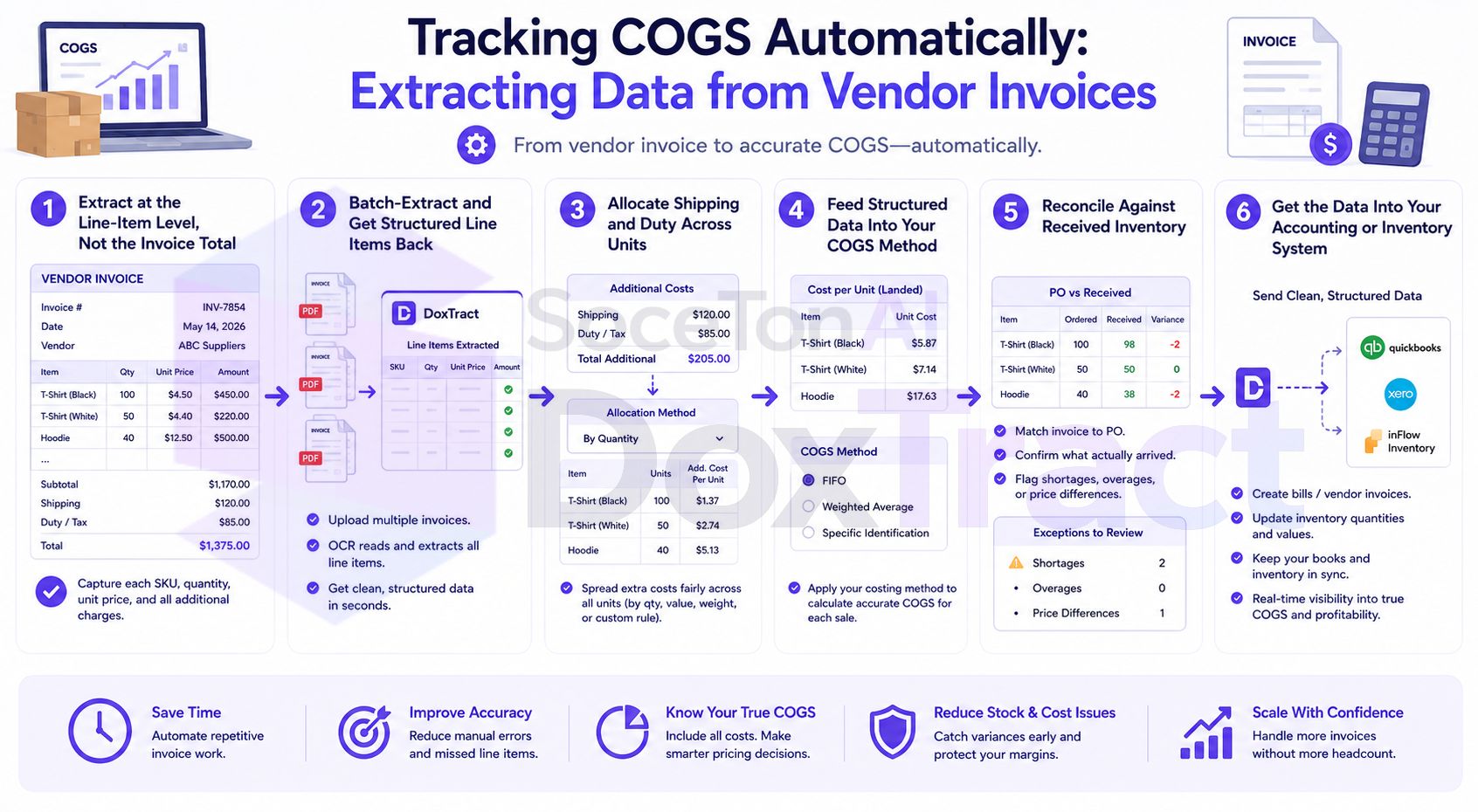
What Actually Makes Up COGS (and Why Manual Entry Struggles With It)
COGS isn't just "what I paid the vendor." A complete, accurate figure includes:
Unit product cost — the base price per item from the invoice
Freight and shipping — often on the same invoice, sometimes a separate one
Duties and tariffs — for imported goods, frequently listed as a distinct line
Vendor-specific fees — handling charges, minimum order surcharges, and similar line items that get easy to miss when skimming a long invoice
Manual entry tends to capture the first item reliably and get sloppier on the rest — shipping and duty either get missed, lumped into a rough estimate, or entered against the wrong purchase period. Since these are exactly the components that make landed cost accurate rather than approximate, that's where most COGS inaccuracy actually originates.
Step 1: Extract at the Line-Item Level, Not the Invoice Total
The single biggest accuracy improvement over manual entry is capturing every relevant line item as its own structured field, rather than transcribing (or worse, estimating) an invoice's bottom-line total. In the Template Editor — free to try, no signup required — build a template per vendor that extracts:
Fixed Header Box around each column heading on the vendor's invoice — item description, quantity, unit price, and separately, freight/duty/fee lines if they appear.
Value Box under each, connected to its header, capturing the actual values.
Expand Height enabled on line-item value boxes, so the template handles invoices with a varying number of items without needing to be redrawn.
Because this is template-based rather than a fixed generic field set, it adapts to how each specific vendor actually formats their invoices — critical, since vendor invoice layouts vary enormously and a one-size-fits-all extraction misses exactly the detail COGS accuracy depends on.
Step 2: Batch-Extract and Get Structured Line Items Back
From the Doxtract App, select a vendor's template, upload their invoice(s), and run extraction. You get back structured data — one row per line item, if that's how your template is built — rather than an invoice total you'd have to break down manually after the fact.
Step 3: Allocate Shipping and Duty Across Units
With freight and duty captured as their own fields instead of buried in a total, allocating them across units becomes a straightforward calculation: divide the shipping/duty line by the units it applies to, and add that per-unit share to the base product cost. This is the step that turns "vendor price" into actual landed cost — and it only works cleanly when shipping and duty were captured as separate fields to begin with.
Step 4: Feed Structured Data Into Your COGS Method
However you calculate COGS — FIFO, weighted average, or specific identification — the input requirement is the same: accurate per-unit landed cost, tied to the right purchase period. Structured, line-item-level extracted data maps directly into whichever method you use, since the underlying numbers (unit cost, quantity, date, allocated freight/duty) are already broken out rather than needing to be reverse-engineered from an invoice total.
Step 5: Reconcile Against Received Inventory
Before extracted invoice data becomes an accepted COGS input, check it against what actually arrived — quantities and per-unit costs should match your receiving records, not just what was invoiced. Structured data makes this a table comparison (extracted quantity vs. received quantity, per SKU) instead of manually re-reading the invoice against a packing slip.
Step 6: Get the Data Into Your Accounting or Inventory System
CSV import into QuickBooks, Xero, or a dedicated inventory management tool — the simplest path if your extracted fields already match the import columns you need.
API integration for continuous processing, if invoices arrive regularly enough that manual batch uploads become the bottleneck — DoxTract's API can feed extracted data directly into whatever system tracks your inventory costs.
A Practical Example
A vendor invoice for 500 units at $2.10 each, plus a $340 freight line and a $75 duty charge, extracted at the line-item level gives you: unit cost $2.10, freight $340 ÷ 500 units = $0.68/unit, duty $75 ÷ 500 units = $0.15/unit — landed cost of $2.93/unit, not the $2.10 a rushed manual entry might have captured by only reading the product line and skipping the rest of the invoice. Multiplied across a quarter's worth of purchases, that's the kind of gap that turns an apparently-profitable SKU into a break-even one once the real numbers are in.
Getting Started
Pick your highest-volume vendor, build one line-item template for their invoice format in the Template Editor — no signup required — and run their next invoice through it instead of transcribing the total by hand. Check Pricing; the free tier (200 pages/month) is enough to validate the workflow on real invoices before rolling it out across your full vendor list.