What Is OCR and How Can Bookkeepers Use It?
If you've ever used a "scan receipt" button in an app, you've used OCR without necessarily knowing what it was doing. For bookkeepers specifically, understanding what OCR actually is — and isn't — matters, because it explains why some receipt-scanning tools feel magical and others just push the typing work one step further instead of removing it.
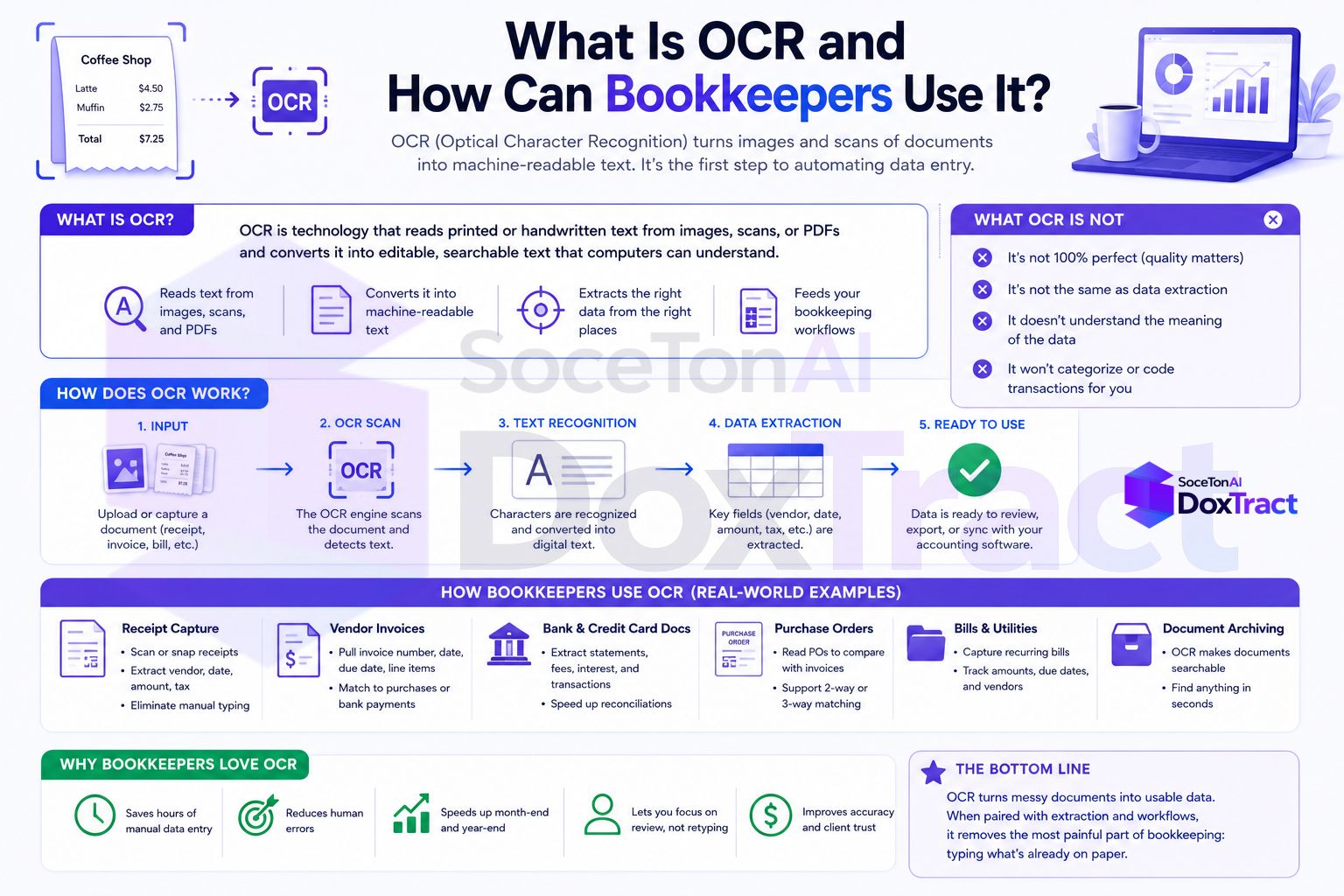
What OCR Actually Is
OCR stands for Optical Character Recognition — software that looks at an image (a scanned document, a photo, a PDF) and identifies the text in it, turning pixels into characters you can copy, search, and select. Before OCR, a scanned receipt was just a picture as far as a computer was concerned — no different from a photo of a sunset. OCR is what lets software recognize that a cluster of pixels says "$84.32" rather than just seeing a shape.
That's genuinely useful, but it's also more limited than most people assume.
What Plain OCR Gives You (and What It Doesn't)
Run plain OCR on a receipt and you get back a wall of text — every word and number the software could recognize, in roughly reading order. What you don't get is any understanding of what that text means. OCR alone can't tell you which of the twelve numbers on a receipt is the total versus a subtotal, a tax line, or a phone number. It can't tell you that "Acme Corp" three lines up is the vendor for the total three lines down. It just gives you the raw text — the interpretation is still up to you.
This is the gap between OCR and what's usually called document AI or structured data extraction: software that combines OCR (reading the text) with an understanding of document layout (knowing that the number near the "Total" label is the one you want), so what comes out is a specific field — total: $84.32 — rather than a page of unstructured text you still have to parse yourself.
For bookkeeping specifically, this distinction is the whole ballgame. Raw OCR text from a hundred receipts still requires a human to go find and type the actual fields into your books. Structured extraction skips that step entirely.
For more details about OCR check What is OCR?
Where Bookkeepers Actually Use This
Receipts: vendor, date, total, and tax pulled directly into a format you can import or match against a bank feed, instead of retyped from a photo.
Vendor invoices: the same fields, plus line items when you need item-level detail rather than just a total.
Purchase orders and forms: documents with more structure — tables, multiple line items, recurring layouts — where a fixed template can extract consistently every time.
Bank and card statements: turning a PDF statement into structured transaction rows when a client hands you a document instead of a CSV export.
The common thread: any document a client sends you as an image or PDF that you'd otherwise read and manually key into your accounting software.
Why "Generic" OCR Tools Still Leave Work for You
A lot of receipt-scanning apps use OCR under the hood but only extract a fixed, generic set of fields — usually just merchant, date, and total. That works fine until a client's document doesn't match the assumed format: a vendor invoice with a nonstandard layout, a table of line items the app wasn't built to parse, or a form specific to their industry. At that point you're back to typing it in by hand, for exactly the documents that take longest.
How DoxTract Approaches This Differently
Instead of a fixed field list, DoxTract lets you define exactly what gets extracted, per document type, using a visual template — no ML expertise or coding required:
Upload a sample document in the Template Editor — free to try, no signup required.
Draw a Fixed Header Box around a label that stays constant across every document of that type (like "Total" or a vendor's letterhead), and a Value Box around the data next to it, then connect the two.
Repeat for every field — including table columns for line items — and save the template.
Once the template is built, you can put it to work either way, depending on who's using it and how:
From the dashboard (no code): upload a document or a whole batch on the Doxtract page and click Extract Data. A single file returns results immediately; a batch runs as a job and hands you back a CSV — enough on its own for an individual bookkeeper or a small practice that just wants clean data without building anything.
Via the API (for developers): the same template can be called programmatically, so a company or practice with its own systems can wire extraction directly into a pipeline — new documents processed automatically as they arrive, with no one opening the dashboard at all. Full endpoint details are in the API docs.
Same template, same accuracy, two ways to trigger it — pick whichever matches how your documents actually flow in.
Because the template is built around anchors rather than a fixed field list, it adapts to whatever a specific client's documents actually look like, rather than forcing their documents into a generic receipt-shaped mold. Every extraction returns structured JSON or CSV — the field you drew, with the value you defined — ready to drop into your books or feed into an automated pipeline via the API.
A Simple Way to Think About It
OCR answers: "what text is on this page?"
Structured extraction answers: "what's the vendor, what's the total, what are the line items?"
A good bookkeeping tool should answer the second question, not just the first — otherwise the OCR step just moved the manual work from "typing" to "reading OCR output and typing anyway."
Getting Started
If you're currently using a receipt scanner that keeps failing on certain clients' document formats, that's usually a sign it's doing plain OCR (or a fixed field set) rather than real structured extraction. Try building one template for the document type that gives you the most trouble in the Template Editor, and compare the output to what you're getting now. Check Pricing — the free tier covers 200 pages a month, enough to test this on a real client before deciding whether to expand it.