How to Set Up Template-Based Extraction for Recurring Documents
If your business receives the same handful of document formats over and over — invoices from the same 10 vendors, POs on the same layout, delivery notes from a consistent set of suppliers — you don't need a model to "learn" your documents. You need a template-based extraction engine that maps the fields once and reuses that mapping indefinitely.
This is a practical, step-by-step guide to setting that up in DoxTract, including how to avoid the most common mistake that causes templates to break on real-world documents.
When Template-Based Extraction Is the Right Call
Template-based extraction works best when a document type has a stable, repeating layout — the same vendor, the same form, the same generator producing the PDF. It's the wrong tool if your documents come from dozens of different sources with no consistent structure; that's a job for a more flexible, layout-agnostic approach instead. (See the full breakdown of when to use each approach →)
A good rule of thumb before you start: pull five to ten real samples of the document type you want to automate. If the field positions — where the invoice number sits, where the total appears — look visually consistent across all of them, you're in template territory.
Step 1: Draw Your Template
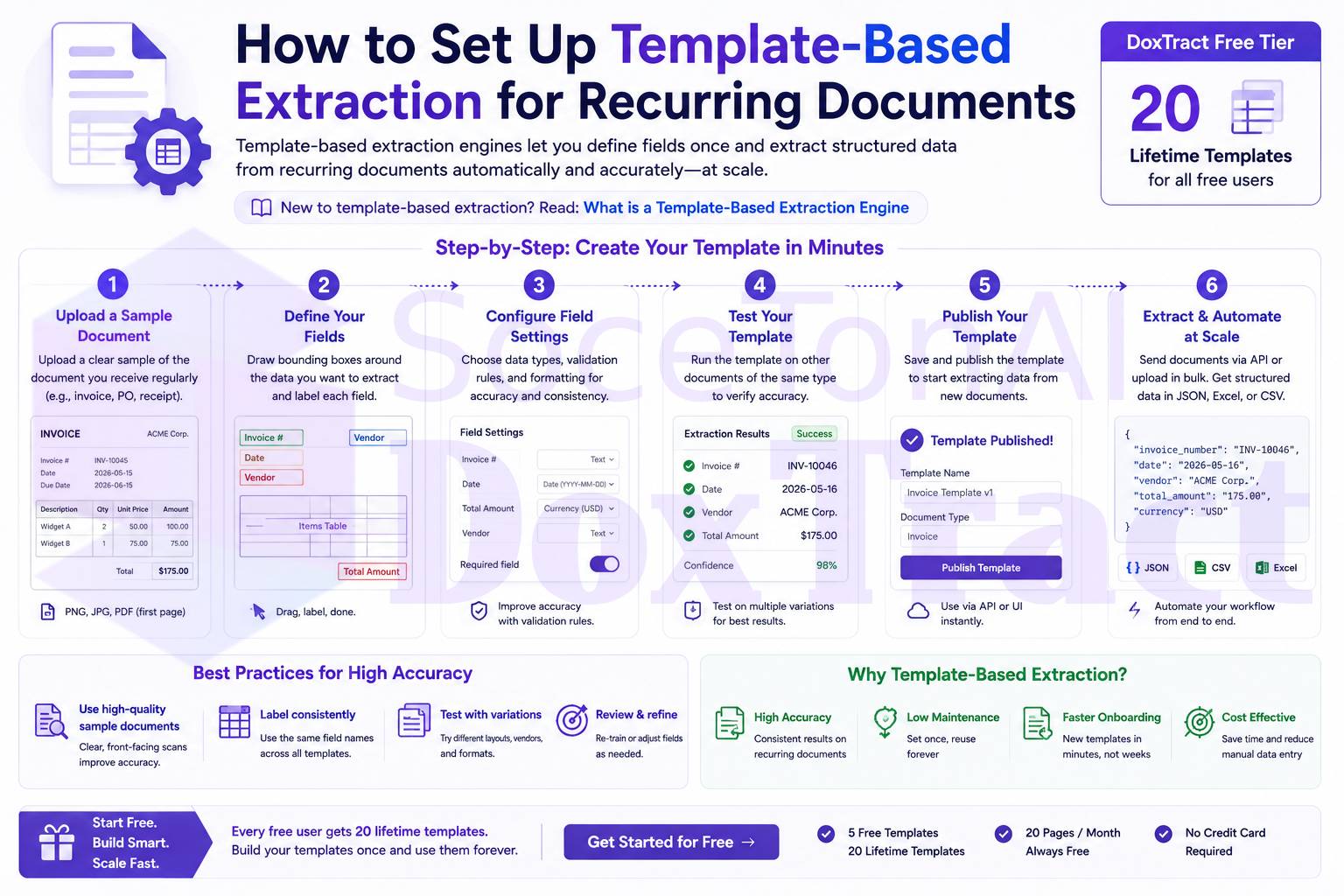
Instead of writing regex or hand-coding field coordinates, you build a template visually, directly on a real sample document:
Upload a representative document — pick a clean, typical example, not an edge case.
Identify each field you need extracted: Invoice Number, Vendor Name, Total Amount, Line Items, Due Date, whatever your workflow requires.
Draw a bounding region around each field, connecting the region to a field name.
Repeat for every field on the page.
No labeled training data and no model training step are required — the template is a direct map of "this field lives here," not a statistical guess.
Step 2: Save the Template to the Cloud
Once a template is mapped, save it. From that point forward, it's reusable across every future document that shares the same layout — by you, or anyone else on your team with access to the workspace. This is also where the free tier's structure matters: DoxTract's free plan includes 20 lifetime templates, which is enough to cover a genuinely useful range of recurring vendors or document types before you need to upgrade. Treat those 20 slots deliberately — prioritize your highest-volume, most stable document formats first.
Step 3: Extract at Scale
With the template saved, new documents matching that layout get processed automatically:
Upload a new document (or route it through the API).
The system matches it to the saved template.
Structured JSON output comes back with each field populated according to your mapping.
This is where the free tier's 200 pages/month allowance comes in — enough to run a real production trial across your actual document volume, not just a handful of test uploads.
Step 4: Handle the Fields That Are Layout-Sensitive
Not every field behaves the same way once a template goes into production. In our own benchmark across 4,000 real invoices, fields with a fixed, predictable position — Invoice Number, Vendor/Contact — held 92–100% accuracy across templates. Total Amount was consistently the weakest field, dropping as low as 67% on templates where the total's position shifted — multi-line totals, tax/subtotal groupings, and inconsistent placement were the main causes. (Full benchmark →)
Two practical steps reduce this risk before you scale a template into production:
Test against more than one sample. Draw your template on one document, but validate it against at least 5–10 real examples of the same "template" before trusting it at volume — layouts that look identical at a glance sometimes shift slightly between invoice runs.
Flag high-risk fields for review. If a field like Total Amount is prone to positional drift for a given vendor, route it to a manual check rather than assuming straight-through processing — the cost of one wrong total is higher than the cost of a second look.
Step 5: Maintain Templates as Formats Change
Templates don't degrade like trained models do, but they do break if a vendor changes their invoice layout. Build a light maintenance habit around this:
Periodically spot-check extraction output against a few of the highest-volume templates, especially after a vendor mentions any billing system change.
If a template's accuracy drops on a batch, don't patch around it — rebuild the affected regions so the template stays a clean, accurate map of the current layout.
Retire templates for vendors you no longer work with to keep your 20 lifetime slots focused on active, high-value document types.
A Realistic Starting List
If you're deciding which documents to template first, prioritize by volume and stability, not complexity:
Your highest-volume recurring vendor invoices
Standardized internal forms (POs, delivery notes) your own systems generate
Any document type where a wrong field currently causes the most manual rework
Leave your remaining template slots for whichever formats turn out to be worth automating once you've seen accuracy on the first batch.
Try It on Your Own Documents
The fastest way to know whether template-based extraction fits your documents is to build one and see what it does with your real invoices — not a demo PDF. DoxTract's free tier covers 200 pages a month and 20 lifetime templates, enough to test this end-to-end before committing to anything.