How to Extract Data from Invoices: Fields, Tables, and Line Items
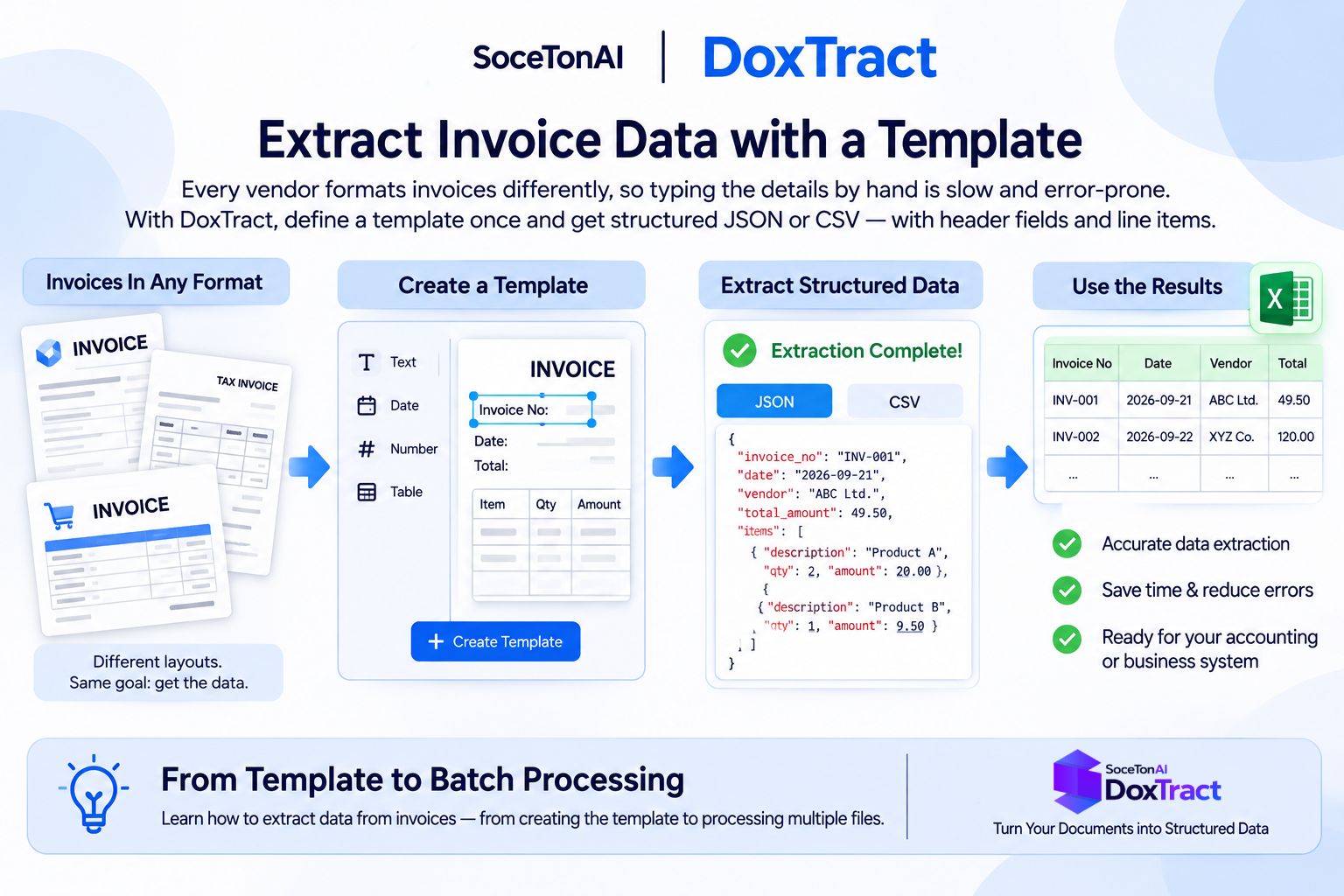
Every vendor formats invoices differently, so typing the details into a spreadsheet or accounting system by hand is slow, repetitive, and easy to get wrong. A template-based approach fixes that. You define the fields once, and DoxTract returns structured JSON or CSV with header fields like invoice number, dates, and totals, plus every line item. This guide shows how to extract data from invoices, from creating the template to processing batches. For the general workflow, see our guide to extracting structured data from documents.
What Data Can You Extract from an Invoice?
An invoice holds two kinds of data: single values that appear once, and a table of items that repeats. A DoxTract template can capture both.
| Header fields | Line items (table) |
|---|---|
| Vendor name | Description |
| Invoice number | Quantity |
| Invoice date | Unit price |
| Due date | Amount |
| PO number | |
| Payment terms | |
| Currency | |
| Subtotal | |
| Tax | |
| Total |
Header fields are extracted as single values. Line items come out as a list, one entry per row, so an invoice with three items and one with thirty both produce clean, structured output. You choose which fields to include, so you can start with just the ones you need, such as invoice number, date, and total, and add more later.
Why Invoices Are Tricky
Invoices look simple, but a few things make them harder to extract than most documents:
Layouts differ by vendor. There’s no standard design. The invoice number might sit top-left on one invoice and top-right on the next, under a different label (“Invoice #”, “Inv No.”, “Reference”).
Line item tables vary in length. One invoice has two rows, another has fifty, and long ones can run across multiple pages.
Totals, taxes, and discounts are placed differently. Some invoices show subtotal, discount, tax, and total in a stacked block, while others scatter them or leave some out.
Quality varies. You may receive clean digital PDFs, flatbed scans, and phone photos in the same batch, each with different levels of sharpness and skew.
This is why a template approach works well: you define where each field lives for a given layout, and DoxTract extracts it consistently every time.
Step 1: Create an Invoice Template
Start with a representative invoice from the vendor or layout you want to handle. Open the Template Editor, upload the invoice, and give the template a clear name and description, such as “Acme Corp invoice.” Then select the model you want to use for extraction.
Next, mark the fields. For each value you want, draw a Fixed Header Box around the label that stays the same on every invoice (for example “Invoice No.” or “Due Date”). Then draw a Value Box around the data next to it, and connect the two. Repeat for the header fields you need: invoice number, invoice date, due date, PO number, payment terms, subtotal, tax, and total. When you’re done, click Save to Cloud, and the template is ready to use from the DoxTract page.
[Screenshot: template editor with invoice header fields and their value boxes connected]
New to templates? Read template basics for the concepts, or the create template guide for the full walkthrough.
Setting Up Line Items with Table Extraction
Line items need a slightly different setup, because the number of rows changes from invoice to invoice. For each column of the table (description, quantity, unit price, amount), draw a Fixed Header Box around the column header and a Value Box around that column’s values, then connect them.
To handle invoices with varying row counts, enable Expand Height on each column and connect it to a Fixed Header Box below the table, such as the “Subtotal” or “Total” label. When that lower box sits further down the page on a longer invoice, the value boxes stretch with it, so every row is captured whether there are 3 items or 30.
[Screenshot: invoice table with column header boxes, value boxes, and Expand Height connected to the Subtotal label]
The table extraction guide covers the full steps.
Step 2: Extract Data from a Single Invoice
With the template saved, go to the DoxTract page and click Modify Selection. Choose your invoice template and click Done, then select the invoice (an image or PDF) and click Extract Data. For a single file, the result appears right after processing.
Compare the output to the original invoice. Check that the invoice number, dates, and totals are correct, and that the line item count matches. If a field is missing or wrong, adjust the template and run it again. Testing on one real invoice now saves time when you scale up. See the data extraction guide for the full walkthrough.
Example Output
Here’s what extraction looks like on a real-style invoice. The sample below is synthetic, so no real vendor or customer data is shown.
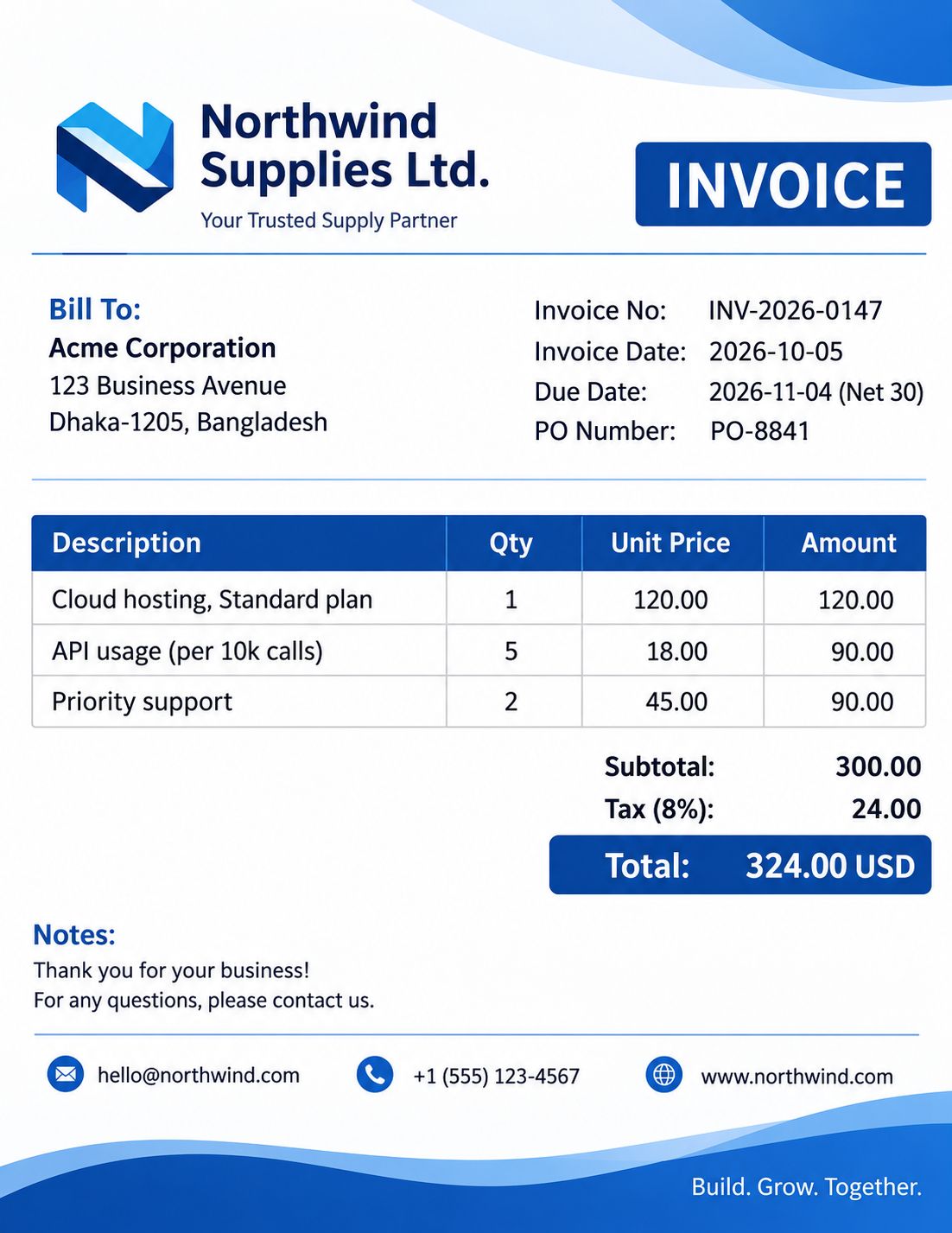
Extracted JSON
{
  "vendor_name": "Northwind Supplies Ltd.",
  "invoice_number": "INV-2026-0147",
  "invoice_date": "2026-10-05",
  "due_date": "2026-11-04",
  "po_number": "PO-8841",
  "payment_terms": "Net 30",
  "currency": "USD",
  "line_items": [
    {
      "description": "Cloud hosting, Standard plan",
      "quantity": "1",
      "unit_price": "120.00",
      "amount": "120.00"
    },
    {
      "description": "API usage (per 10k calls)",
      "quantity": "5",
      "unit_price": "18.00",
      "amount": "90.00"
    },
    {
      "description": "Priority support",
      "quantity": "2",
      "unit_price": "45.00",
      "amount": "90.00"
    }
  ],
  "subtotal": "300.00",
  "tax": "24.00",
  "total": "324.00"
}
Header fields come back as single values, and the table comes back as a line_items list with one entry per row. Because the output is structured, you can run checks directly on it. Here, 120.00 + 90.00 + 90.00 = 300.00, plus 24.00 tax gives the 324.00 total, which is the kind of validation covered later in this guide. In the dashboard, a batch job exports the same data as a CSV.
Step 3: Process Invoices in Batch
Once the template works on a single invoice, you can run a whole stack at once. On the DoxTract page, choose your invoice template, then select multiple images or PDFs and click Extract Data. Instead of showing a result immediately, DoxTract creates an extraction job. When the job finishes, download the extracted data as a CSV file, with one row per invoice, ready to open in Excel or Google Sheets or import into your accounting system. See the data extraction guide for the full walkthrough.
[Screenshot: batch job with multiple invoices selected and the completed job with the CSV download]
Automating it with the API
If invoices arrive continuously, such as from a shared inbox or a vendor portal, you don’t have to upload them by hand. The DoxTract API lets your own app or workflow send invoices and receive structured data back. Create an API key by following the API keys guide, then call the endpoints from your code, a Zapier or Make automation, or a scheduled job.
Handling Multiple Vendors and Layouts
A template is built around one document layout. Its Fixed Header Boxes are anchored to text that never changes, such as the company name, the “Invoice No.” label, or the table headers. They’re how DoxTract matches the template to a new document and locates the Value Boxes. Which template to use comes down to whether the documents share those stable anchors.
Use one template when the layout is the same. If every invoice comes from one vendor, or from your own system with a fixed design, a single template covers them all. Line item count can vary freely, because Expand Height handles that.
Use a separate template per layout when vendors differ. Different vendors put fields in different places and label them differently (“Invoice No.”, “Inv #”, “Reference”), so their stable anchors don’t match. Create a template for each, and name them clearly, such as “Acme Corp invoice” or “Northwind invoice”, so the right one is easy to pick when you run an extraction. A good approach is to start with the three to five vendors that send you the most invoices, then add templates as new layouts come in.
Updating a template when a vendor changes its layout. Vendors redesign their invoices from time to time. When extraction starts missing fields on a familiar vendor, update the template instead of rebuilding it:
On the DoxTract page, click Modify Selection.
Click the edit icon next to the template.
Adjust the boxes in the Template Editor, ideally using one of the new-layout invoices.
Click Save to Cloud.
The updated template is available immediately. If the new design is very different, saving it as a new template (for example “Acme Corp invoice v2”) keeps the old layout working for older invoices. See the update template guide for details.
Validating Invoice Data
Extraction gets the data out of the document, but it’s worth checking it before it reaches your books. A few simple checks catch most misreads, which are often plausible-looking numbers that are slightly wrong:
Totals add up. The sum of the line item amounts should equal the subtotal, and subtotal plus tax (minus any discount) should equal the total. This is the single most useful check. A mismatch usually means a missed or misread line item.
Line math is consistent. Quantity × unit price should equal each line’s amount.
Dates are valid. Invoice and due dates should parse as real dates, and the due date should not come before the invoice date.
Required fields are present. Invoice number, vendor, date, and total should never be empty. A blank value signals that the template didn’t match or a field was missed.
No duplicates. Check each vendor and invoice number pair against what you’ve already processed, so the same invoice isn’t paid twice.
You can run these checks wherever the extracted data lands. If you use the API or an automation tool like Zapier, add a validation step right after extraction, in a short script or a filter, and send failures to a review queue instead of straight into your system. If you import into accounting software such as QuickBooks or Xero, use its duplicate detection and your own review step for the rest. For small batches downloaded as CSV, a few spreadsheet formulas can flag mismatches before you import.
Invoices that fail a check are the ones worth a human look. The rest can flow through automatically.
Where to Send the Extracted Invoice Data
Once your invoice data is validated, send it where it’s needed. For no-code automation, the Zapier guide shows how to pass extracted invoices into the apps you already use. If you work in accounting software, the QuickBooks and Xero auto-import guide covers turning invoice data into ready-to-import entries. For reporting and review, download the batch CSV and open it in Excel or Google Sheets. And for custom pipelines, such as feeding an ERP or a database, use the DoxTract API to get structured JSON straight into your own systems.
Try It on Your Own Invoices
The fastest way to see how well extraction works is to run it on your own files. Create a free DoxTract account and get 200 pages every month, enough to build a template for your most common vendor and test it on a real batch of invoices, line items included.
Frequently Asked Questions
Can DoxTract extract line items from invoices?
Yes. Using table extraction, you map each column (description, quantity, unit price, amount) in your template. With Expand Height enabled, the table grows to fit the invoice, so you capture every row whether there are 3 items or 30.
Does it work with scanned or photographed invoices?
Yes. DoxTract extracts data from images and PDFs. Sharp, well-lit, straight-on scans give the best results, so retake photos with glare, shadows, or cropped edges.
Do I need a different template for every vendor?
Generally, yes, for every different layout. A template is anchored to the stable text on a document, such as labels and table headers, so vendors with different designs need their own templates. All invoices that share the same layout, such as those from a single vendor, can use one template.
What if a vendor changes its invoice layout?
Edit the existing template instead of starting over. From the DoxTract page, click Modify Selection, open the template with the edit icon, adjust the boxes, and save. If the new design is very different, save it as a new template so older invoices still work.
How do I get invoice data into QuickBooks or Xero?
Export the extracted data as CSV from a batch job, or send the JSON through the API or an automation tool. Our QuickBooks and Xero auto-import guide walks through the full setup.