How to Extract Structured Data from Documents (Invoices, Receipts, Delivery Reports & More)
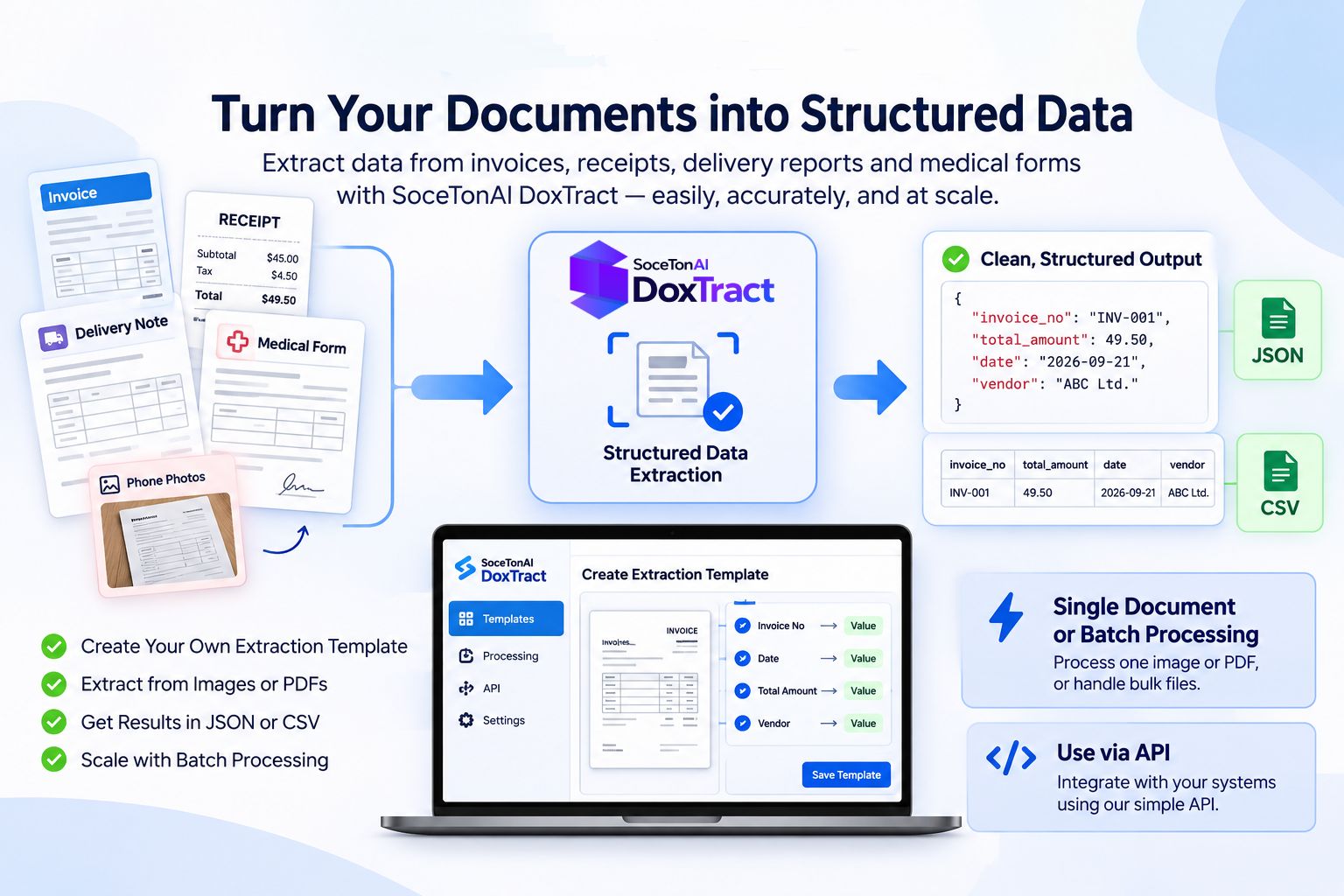
Invoices, receipts, delivery reports, and medical forms hold valuable data, but it’s locked inside PDFs and phone photos. Copying it into spreadsheets by hand is slow, error-prone, and doesn’t scale. Structured data extraction turns those documents into clean JSON or CSV you can send straight to your systems. In this guide, you’ll learn how to create an extraction template, process a single image or PDF, and run batches of documents with SoceTonAI DoxTract, from the dashboard or through the API.
What Is Structured Data Extraction?
Structured data extraction is the process of automatically pulling specific fields, such as vendor name, invoice number, dates, totals, and line items, from unstructured documents like PDFs and images, and returning them in an organized, machine-readable format such as JSON or CSV.
Unlike plain OCR, which only converts an image into raw text, structured extraction identifies what each piece of text means and maps it to named fields you can use directly.
What You Can Extract (Document Types)
SoceTonAI DoxTract works with any document where you can define the fields you need. Here are the most common types:
Invoices: vendor, invoice number, dates, PO number, payment terms, totals, and line items.
Receipts: merchant, date, items, tax, tip, total, and payment method, even from phone photos.
Delivery reports and delivery notes: shipment and order numbers, recipient, delivery date, item quantities, and signatures or stamps.
Medical documents: patient details, dates, provider information, diagnoses, and prescriptions, handled with care for sensitive data.
Other documents: purchase orders, bills of lading, ID documents, bank statements, and any custom form you can define a template for.
The 3-Step Workflow
Every document type follows the same process: define what you want, test it on one document, then scale up.
Step 1: Create a Template
A template tells DoxTract which fields to extract, such as vendor name, invoice number, dates, totals, or a table of line items. Name each field clearly, add a short description where it helps, and save the template. You only do this once per document type. New to templates? Start with template basics, then follow the create a template guide.
[Screenshot: template editor with fields defined]
Step 2: Extract from a Single Image or PDF
Upload one document, select your template, and run the extraction. Review the returned fields against the original, and adjust the template if anything is missing or mislabeled. Testing on a real, imperfect document at this stage saves time later. See the data extraction guide for the full walkthrough.
[Screenshot: single document result with extracted fields]
Step 3: Process Documents in Batch
Once the template works, upload many files at once and get structured results for all of them. For automated workflows, use the DoxTract API to send documents from your own app and receive JSON back. You’ll need an API key, which you can create by following the API keys guide.
Extracting Tables and Line Items
Tables are the hardest part of document extraction. A header field like an invoice number appears once, but a table has rows that vary from document to document: one invoice has three line items, the next has thirty. Columns must stay aligned with their values, and long tables can push the content below them further down the page.
DoxTract handles this with template-based table extraction. You draw a Fixed Header Box around each column header and a Value Box around that column’s values, name the field, and connect the two. For tables whose length changes, enable Expand Height and connect the column to a Fixed Header Box below the table. When that lower box moves, the value box grows or shrinks with it, so every row is captured whether the document has 3 items or 30.
The result is a structured list of line items (description, quantity, unit price, amount) instead of a block of text. See the table extraction guide for the full steps.
Choosing Between the Dashboard and the API
You can run the same templates from the DoxTract dashboard or through the API. The right choice depends on how often you process documents and where the data needs to go.
| Dashboard | API | |
|---|---|---|
| Best for | Occasional or one-off batches, testing templates | Recurring or automated workflows |
| Setup | None: upload files and run | API key and a short integration |
| Who uses it | Finance, ops, and admin teams | Developers and product teams |
| Output | Review and export results | JSON returned straight to your app or system |
Use the dashboard when you’re building and testing templates, processing a periodic stack of documents, or don’t have developer resources. It’s also the fastest way to check accuracy before committing to an integration.
Use the API when documents arrive continuously, when extraction should happen automatically inside your own app, or when results need to flow directly into an accounting, ERP, or expense system without anyone touching them.
Most teams start in the dashboard to perfect a template, then move to the API once the results hold up. To integrate, read the DoxTract API endpoints guide and generate your API keys. If a request fails, the logs page shows the latest activity for debugging.
Tips for Better Extraction Accuracy
A few habits make the biggest difference to results:
Start with good images. Use sharp, well-lit scans or photos taken straight on, with the whole page in frame. Avoid glare, shadows, and cropped edges. Skewed or blurry images are the most common cause of missed fields.
Use clear field names. Name fields exactly as you want them to appear in your output, such as
invoice_numberortotal_amount, instead of vague labels like “field1”. Clear names keep your JSON easy to read and easier to map into other systems.Test on your worst-case documents. Clean samples always work. Run the template on faded prints, crumpled pages, long tables, and unusual layouts before you scale up. That’s where problems show up.
Validate the totals. Check that line items plus tax add up to the total. A quick sum check in your workflow catches misreads that look plausible but are wrong.
Update templates when layouts change. If a vendor redesigns their invoice or a form is revised, adjust your template instead of living with degraded results. See the update template guide.
Where to Send the Extracted Data
Extraction is only half the job. Once your data is structured, you can send it wherever it’s needed. For no-code automation, connect DoxTract to Zapier or Make.com to push results into your apps whenever a new document arrives. If you work in accounting software, the QuickBooks and Xero auto-import guide shows how to turn invoices and receipts into ready-to-import entries. For simple reporting, export results to Google Sheets or Excel. And if you’d rather build your own pipeline, the API returns clean JSON you can send to any database or system.
Try It on Your Own Documents
The best way to see how extraction works is to run it on your own files. Create a free DoxTract account and get 200 pages every month, with no expiry, enough to build a template and test it on real invoices, receipts, delivery reports, or any document you work with.
Frequently Asked Questions
What’s the difference between OCR and data extraction?
OCR converts an image or PDF into raw text. Data extraction goes further: it identifies what each piece of text means, such as invoice number, date, or total, and returns it as named fields in a structured format like JSON or CSV.
Do I need to know how to code?
No. In the DoxTract dashboard you create a template by drawing boxes around the fields you want, then upload your documents and run the extraction. Coding is only needed if you want to integrate extraction into your own app through the API.
Can I process multiple documents at once?
Yes. Select several images or PDFs and DoxTract creates an extraction job. When the job finishes, you can download all the results as a CSV file. Processing a single file shows the result immediately.
What file formats are supported?
DoxTract extracts data from images and PDF files.
Are my documents stored or used for training?
No. According to the DoxTract privacy policy, uploaded images, PDFs, and templates are processed in memory, are not stored, and are used only to perform OCR and extraction. If you enable the optional caching setting, processed OCR results are temporarily stored to reduce compute cost, and you can turn it off at any time. Usage logs, which record billing and endpoint activity, not document contents, are kept for up to 12 months.